Android
Requirements
MDM
A MDM Solution is required to use the Client Filter on Android
Limitations
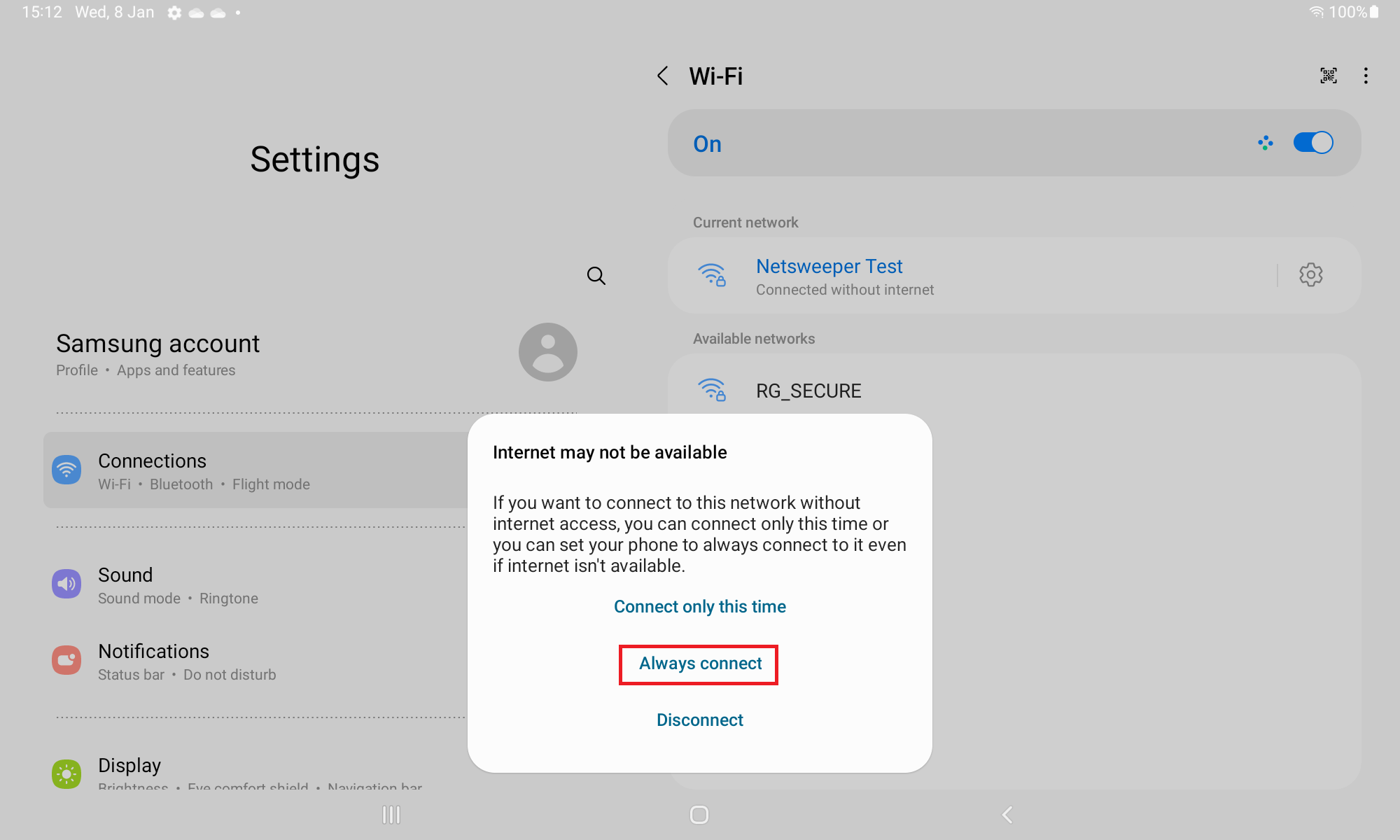
Android devices require a connection to www.google.com to verify internet connectivity, so an Android device going through Netsweeper will report that it has no internet connection
The Netsweeper workaround is to add a new CNAME record on your local DNS server for your local Google domain(s) that points to forcesafesearch.google.com
Ideally any Android devices would need to be on a separate VLAN due to not inspecting the Google traffic.
MDM Required for Client Filter
The Netsweeper Clinet Filter is a browser replacement. To install the client filter on an Android device this needs to enrolled into a MDM solution, otherwise we can only provide filtering.
MDM Guides
Intune
SSL Certificate
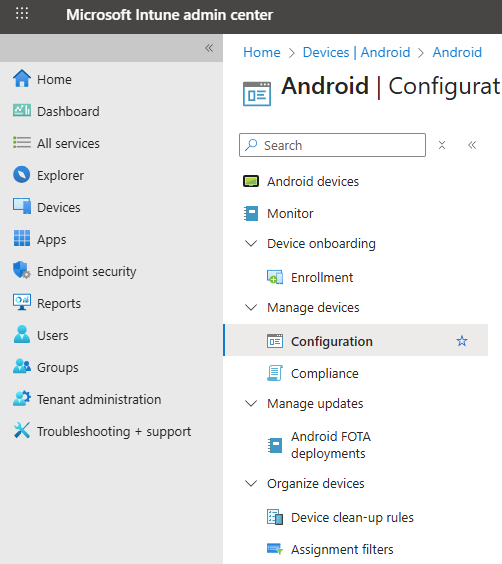
In Intune click "Devices" -> "By Platform" -> "Android" -> "Configuration"
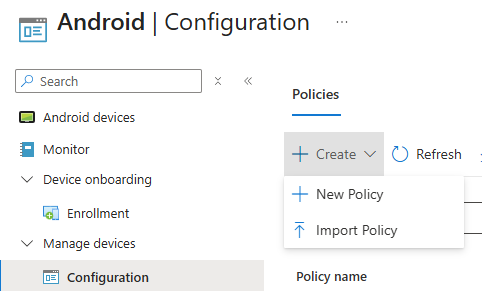
Select "+ Create" -> "New Policy"
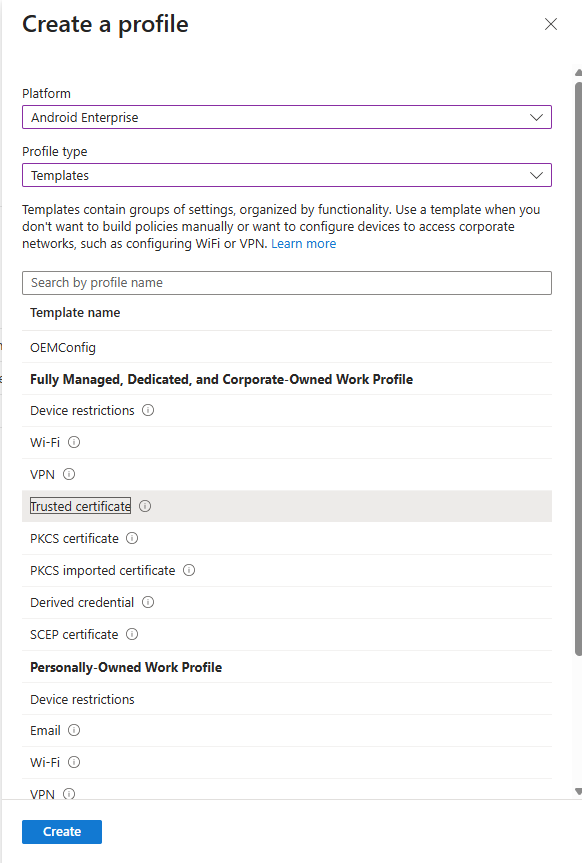
Select the following:
Plaform = Android Enterprise
Profile Type = Templates
Template Name = Trusted Certificate
Give the configuration a name
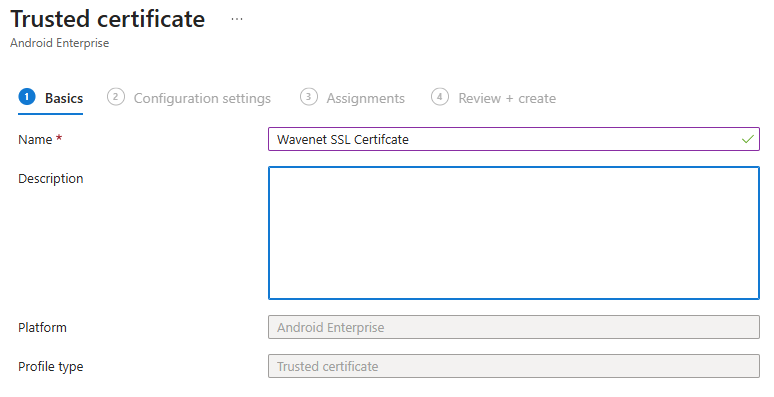
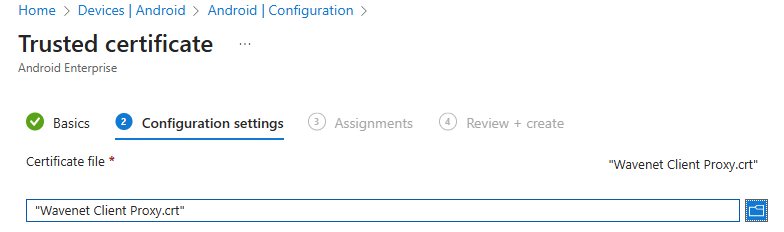
Browse to the SSL certificate
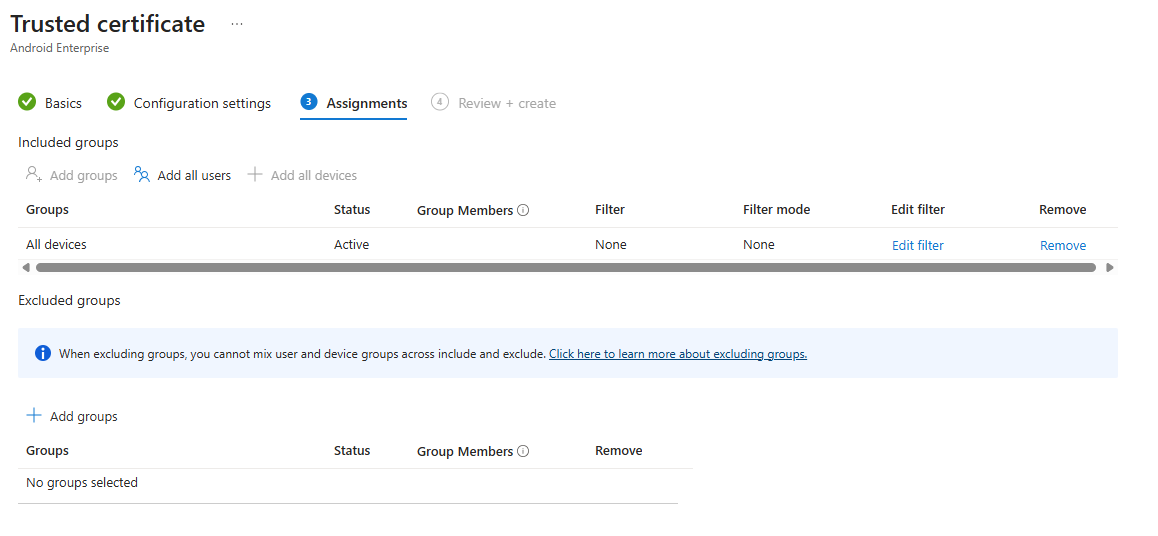
On the next screen assign this to a group or all devices
Now on the last screen click "Create" and the configuration should appear within a couple of minutes.
Client Filter
This guide assumes Android devices are already enrolled and a Managed Google Play has been linked
Ensure the device is enrolled with "Corporate-owned, fully managed user device", if the device is enrolled with Kiosk enrollment we will not be able to return the username.
In "APPS" -> "Android" click the "+ Add", and select the "App Type" "Managed Google Play app" in the Google Play screen search for "Netsweeper" and select the "Netsweeper Client Filter" app
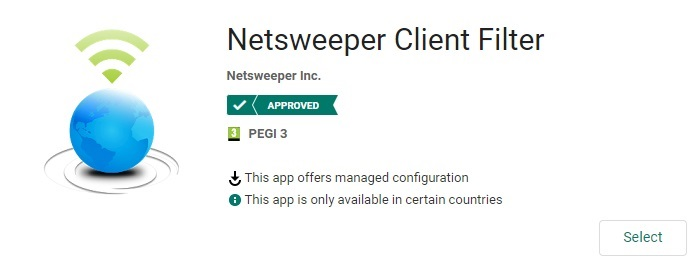
Once this appears in the App list, select the App and assign the required groups. Once this is done the App should start pushing out to the groups selected. However we now need to create an "App Configuration Policy" to push the settings out to the device
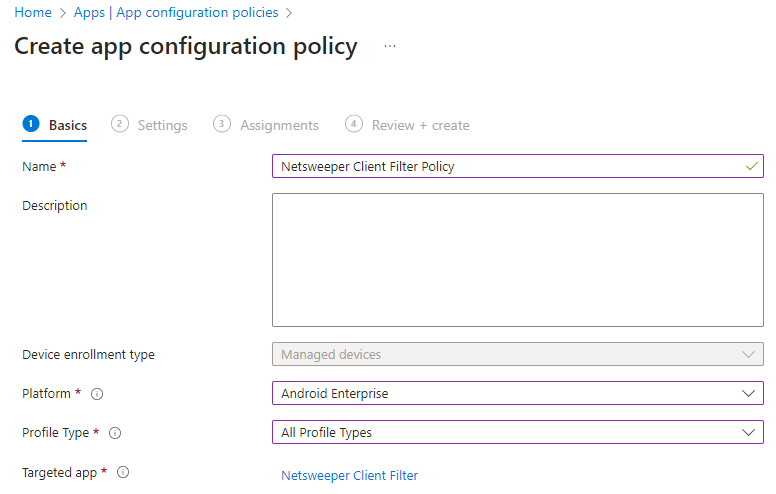
Under "Apps" -> "App configuration policies" click "+ Create" and select "Managed Devices", on this screen you will need to give the configuration policy a name such as "Netsweeper Client Filter Policy", Select the platform this should be "Android Enterprise", the "Profile Type" should match the profile type you need, I select "All Profile Types", once you have completed these you will be able to select the "Targeted app" which should be the "Netsweeper Client Filter" app
On the next page under "Configuration Settings" select "Use configuration designer" and the tick the box for "ConfigEdit" and click "Ok"
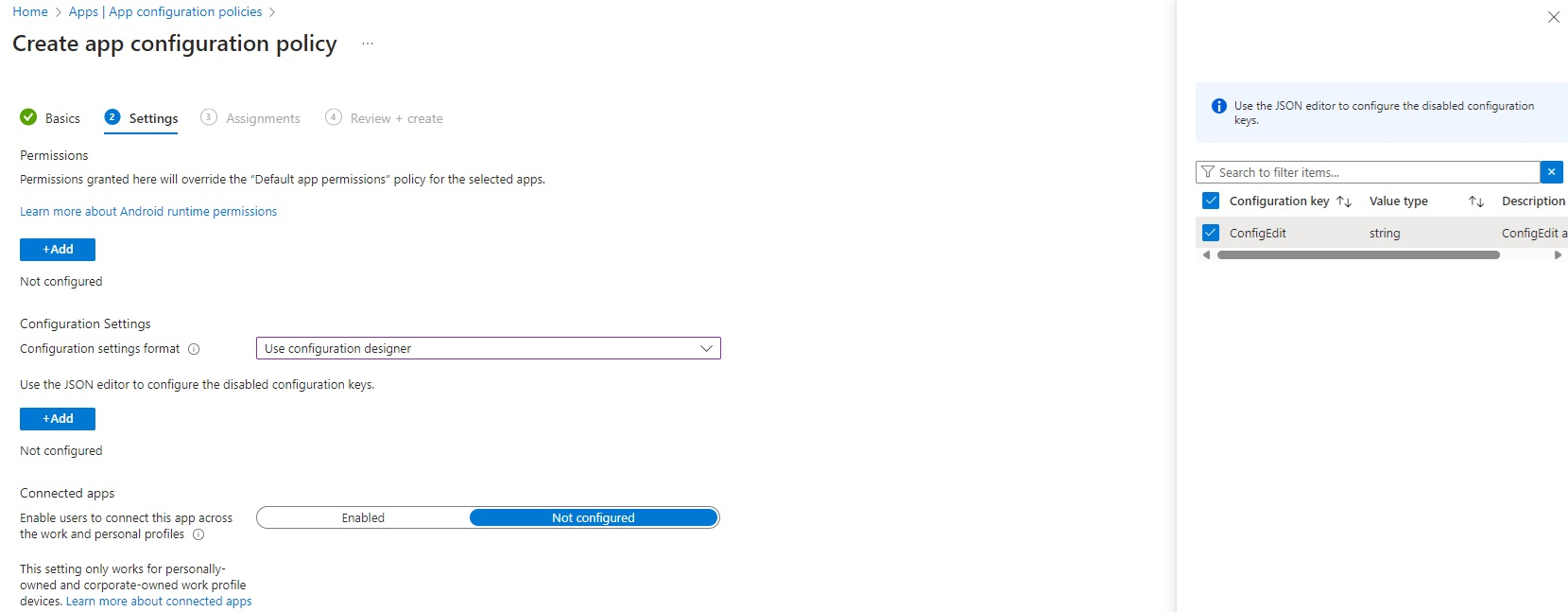
The ConfigEdit value should be a "string" with the configuration value
-p filter.wavenetcloud.netsweeper.com:3431 -y {Brand} -f 958209 -d {DFE-Code} -g nsw_pupil -n {{partialupn}}
the {{partialupn}} is a Intune variable which returns the username
Connecting to a Wireless Network
When connecting to the WiFi network you may get the "Internet may not be available" message, on here click the "Always connect" option