Google Chromebook
Requirements
Chromebooks simply require to be licenced within the Google Admin console, if they aren't licenced and they are stand-alone they can only be used on the filtering and the SSL Certifcate would need to be installed manually (Chromebook manaul SSL installation is not covered in this guide)
Google Admin
SSL Certificate
Login to: Google Admin
Go to Devices -> Networks and then find the "Certificates" section and click on this section

On this Click the "Add Certificate"
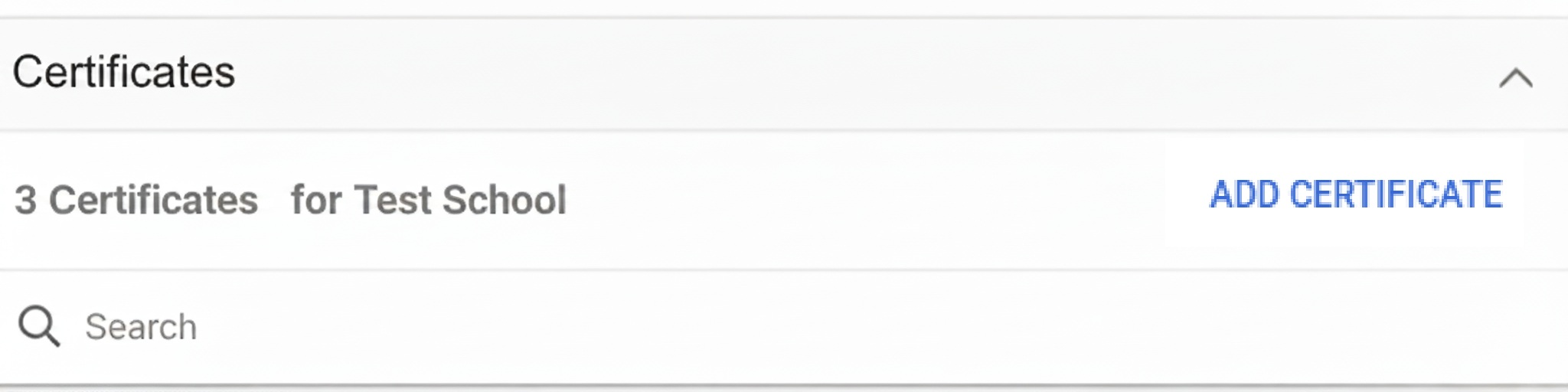
Give the Certificate a name and click "UPLOAD" and browse to the certificate file to upload this. Make sure "Enabled for Chromebook" is ticked

Wagent
The ChromeOS Netsweeper wagent extension ID is: "gehcmbonedocjpdjfemeklocmmpedmoj" Chrome Wagent Store Page
The below JSON should be amended and applied to the "Policy for extensions" section
{
  "NS_WAGENT_ARGS": {
    "Value": "-w wavenetcloud.netsweeper.com -d nsagent-login.netsweeper.com -g {LOGIN_GUID} -L {LOGOUT_GUID} -i -l -v"
  },
  "NS_WAGENT_SOFTWARENAME": {
    "Value": "Netsweeper Workstation Agent"
  }
}
Client Filter
The Chrome extension ID that is required by the onGuard (Client Filter) is: “kdbgbpcphmnekmkhbcfmbdahceffhddn” Chrome Client Filter Store Page
The below JSON should be amended and applied to the "Policy for extensions" section
{
   "policyserver": {
      "Value": "filter.wavenetcloud.netsweeper.com:3431"
   },
   "makeopts": {
      "Value": "-y {BRAND} -f 923649 -g {nsw_group} -d {DFE-Code} -t 987"
   },
   "whitelist": {
      "Value": [
         "stylesheet://, 1",
         "script://, 1",
         "image://, 1",
         "font://, 1",
         "object://, 1",
         "ping://, 1",
         "csp_report://, 1",
         "media://, 1",
         "websocket://, 1",
         "other://, 1",
         "filesystem:, 1"
      ]
   }
}